الثلاثاء، 31 مايو 2011
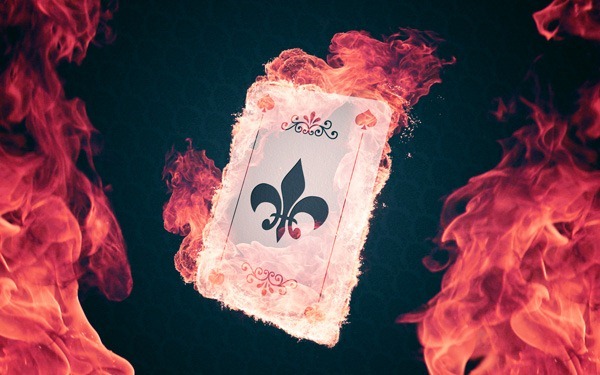
Step 1
Open up Photoshop and create a new document of 1680x1050 and click OK. As a start, we will need to fill the background with a grey colour #606060 so that all details of the flames will be visible once we are going to edit them.Step 2
Create a new layer and name it Poker_card_base. We are going to create the poker card base by using the Rounded Rectangle Tool (U). We need a Shape Layer as it needs to be fully editable when we are going to edit the card shape itself. Set the Radius, located at the top menu, at 40px and drag the regular card shape.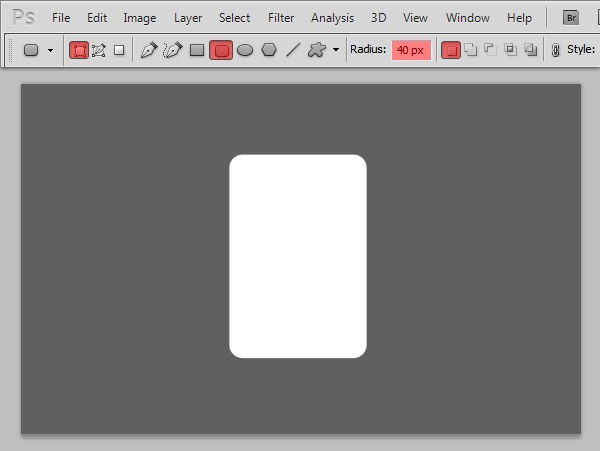
Step 3
Time for some creative freedom! You are going to create your own poker card with custom Shapes. With the Custom Shape Tool (U)selected, you will notice that there is a small arrow located to the right of the default Shape. Click on that and it will open the Custom Shapes Picker menu, try to find the spades shape.
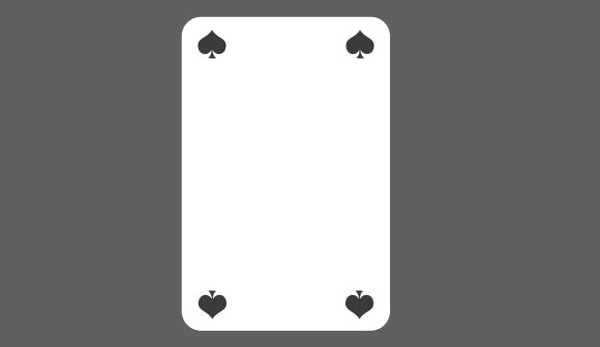
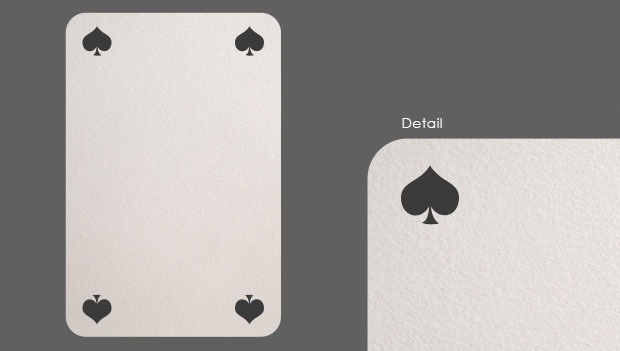
I want the symbol to show on each corner so we will need to duplicate this Shape by selecting it with the Path Selection tool (A)and pressCtrl+C and Ctrl+V and drag it to the right corner. Select and copy the two spade shapes again en drag them towards the bottom of the card and flip them by pressing Ctrl+T and rotate these layers 180 degrees. You should have this result at this point of the tutorial.
Step 4
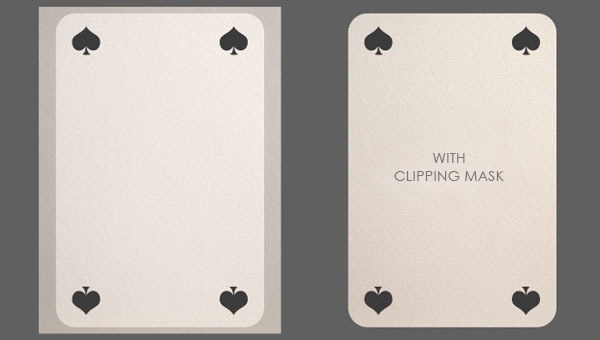
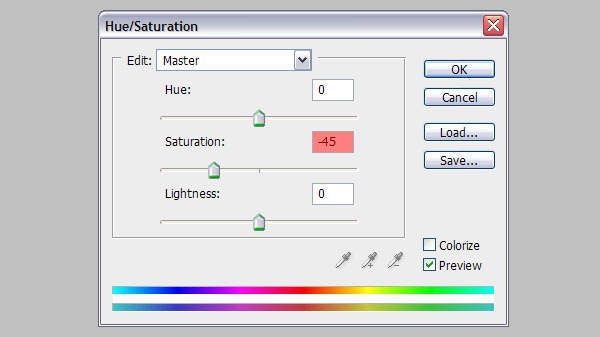
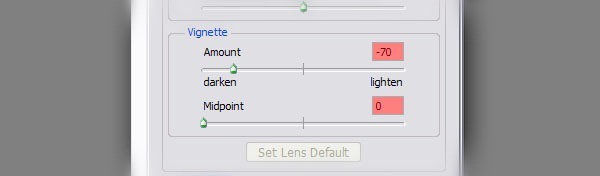
Download this Paper Texture by Suzanne Clute and open it up in Photoshop and drag it into our working canvas. Place the texture below the Spades_symbols layer. Press Ctrl+T and make the texture smaller so that it fits the card, make sure you overlap the texture by a few pixels.Note: I have lowered the opacity of the texture on the left for better viewing. In the Layer Menu, right-click on the texture layer and selectCreate Clipping Mask.
Step 5
Photoshop comes with a set of custom shapes we can use for this tutorial. Find the Fleur-de-Lis shape (shown below), create a new Shape Layer and with the dark grey colour #3b3b3b
Step 6
You can go as crazy as you want with your own custom poker card with the wide variety of shapes. At this point of the tutorial I have added a few ornaments to break away from the generic poker card image but still keep it simple. As you may have noticed, I have also reduced the size of the Fleur-de-Lis.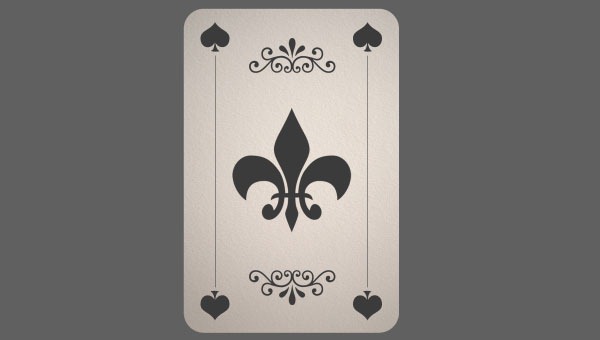
Step 7
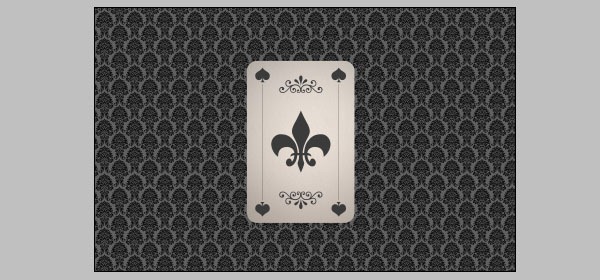
There is a huge collection of free floral patterns on the web which we are going to use for the background. Download this Floral Pattern byJan Hadenfeldt and open the Photoshop file. Remove the Layout folder created by the author and rasterize the Smart layer so that it is easier to edit.Select the pattern layer and drag it into our poker card composition beneath the poker card layers. We have to create several duplicates so that the entire background is filled with the pattern (in total I have created about 23 copies). Merge all the copied pattern layers.
Step 8
Fill the grey background with a darker grey (#454545) and apply the vignetting trick again by going to Filter>Lens Correction orShift+Ctrl+R but only this time, set the Amount to -100 and the Midpoint to 0. This will darken the the edges but gives a nice spotlight for our card.Step 9
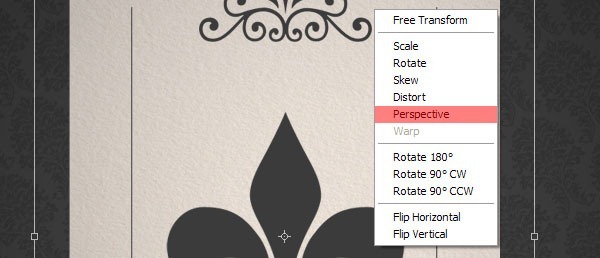
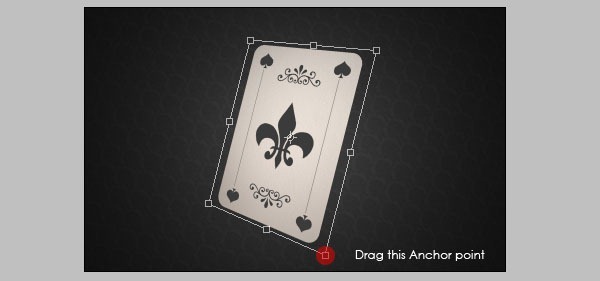
We are going to change the perspective of the card so that it will give the impression that the card is 3D, not quite like Avatar but we can at least try. Select all of the layers that are connected to the card such as the shapes and texture. Press Ctrl+T and right-click on the selection, this will open up a small menu with various options, choose Perspective.Drag the lower right Anchor Point towards the bottom to change the perspective into something more 3D and something visually exciting. Just try to keep it realistic.
Step 10
Download and open the Fire image in Photoshop but don't drag it into our composition just yet. In the photograph there are three seperate flames which we will need to cut out so that they all have their own layer. Simply use the Polygonal Lasso tool (L), create a selection around a flame and you can cut the flame through Layer via Cut. Do this with all three flames.Step 11
Drag the middle flame into our composition and drag it on top of all the layers. Set the Layer Mode to Screen so that the black background will dissappear, this is a nice trick as you can do this with most natural elements (fire, water, earth). As you can see, the fire image layer is too big for the card so simply resize it by pressing Ctrl+T, the image will be selected and ready for resizing. Drag one of the Anchor Pointsto do so. Notice how every flame has a curve section that goes into an almost straight line, this is perfect because we are going to align it with the sharp edges of the poker card.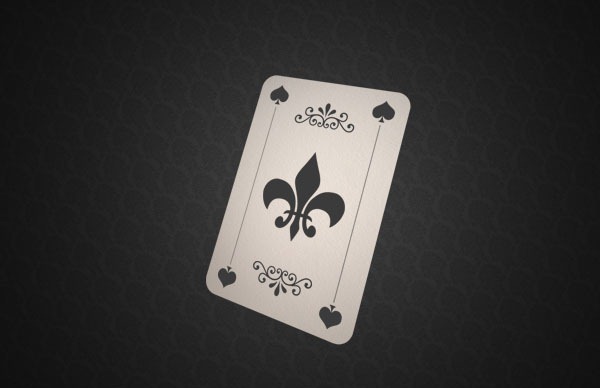
Step 12
Press Ctrl+T to rotate the flame and align it with the poker card like so: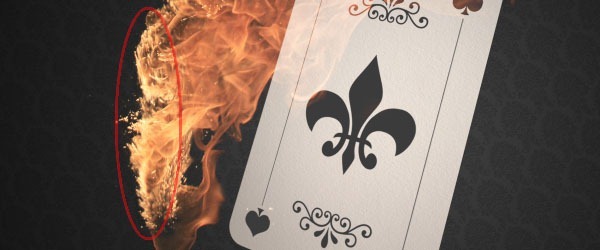
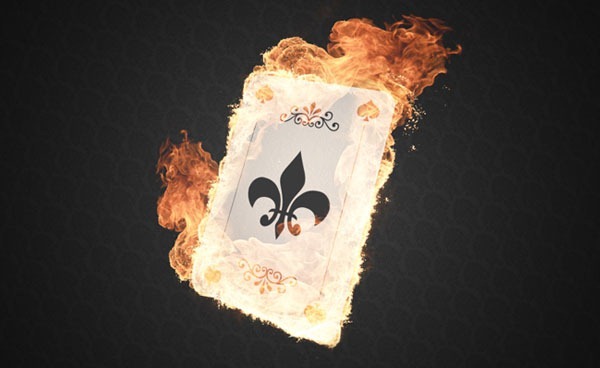
Step 13
This is starting to look good but to intensify the flames simply copy the flames group and you will notice that the flames are much brighter and this is exactly what we want!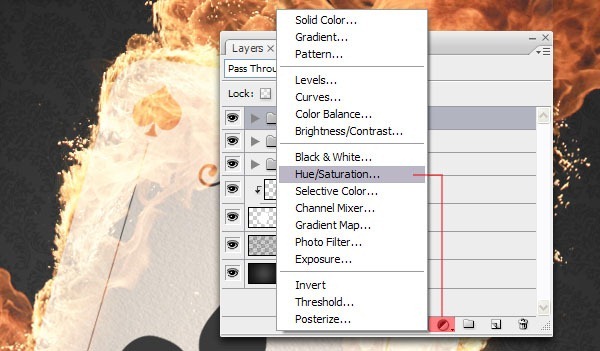
Step 14
I am kind of tired of seeing the generic flame colours we always see so let's go ahead and give it another tint by using a Hue/Saturation Adjustment layer and set the Hue to -24..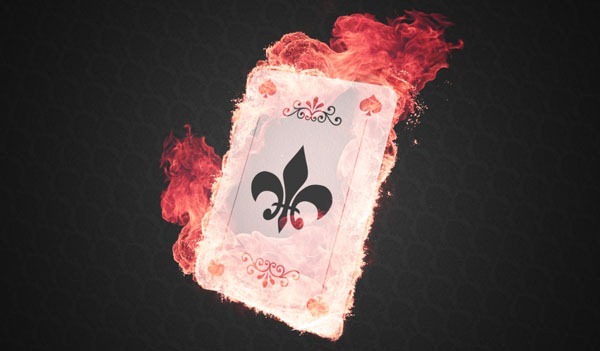
Step 15
Create a copy of the Paper Texture and set the Layer Mode to Darker Color and set the Opacity to 50%. Use the Burn tool (O) to darken some of the spots on the paper texture to accentuate the flames a little better.Step 16
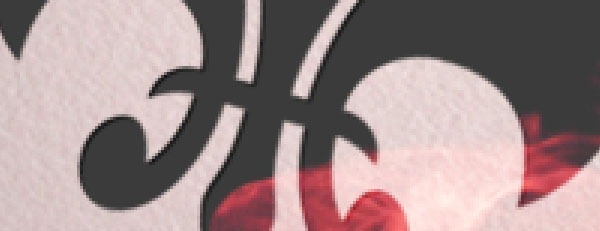
I personally think all the card shapes look a bit flat so I am going to add a Layer Style to help show them more. Double-click on the right side of the Fleur-de-Lis shape and check the box for Inner Shadow. Set the Blending Mode to Multiply, the Opacity at 75%, the Angle at 120 degrees and set the Distance to 1px.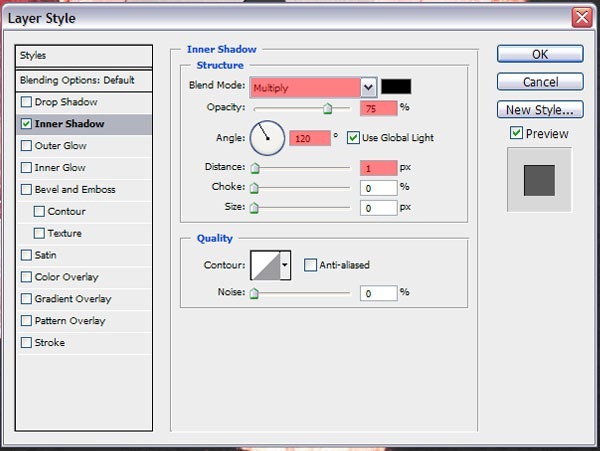
Step 17
For the giant flames on both sides, you will need to open the original Fire image again and drag two or three flames into the composition. Do not resize them until you are happy with the placement. You can rotate or flip them, whatever you want.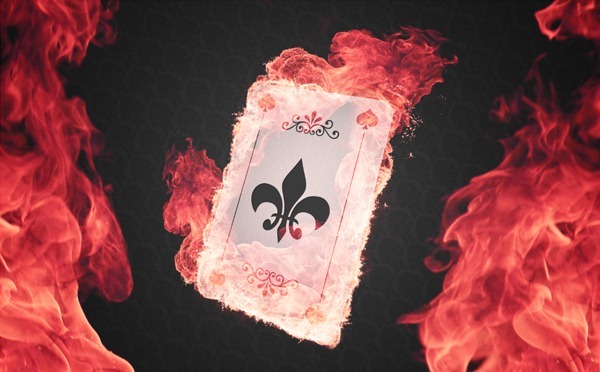
Step 18
I'm not really happy with how the colors look at this point but we can easily change that by adding a Color Balance Adjustment Layer with the settings shown below.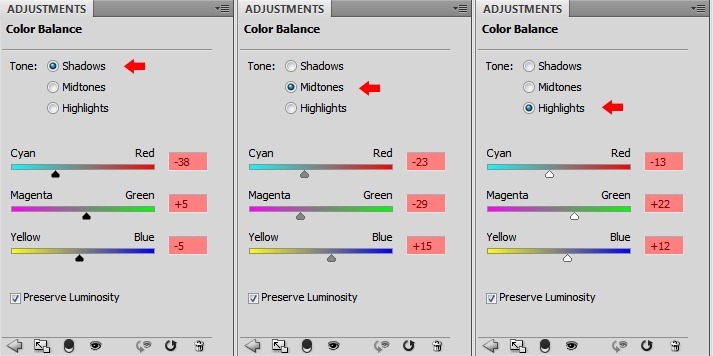
End of Tutorial
![pc_final[1]](http://photoshoptutorials.ws/images/stories/c485331dd07d_10673/pc_final1.jpg "pc_final[1]")


طريقه عمل المياه والتاثير عليها بالفوتوشوب
السلام عليكم
فى هذا الدرس سوف سوف نتعلم طريقة عمل الياه بالفوتوشوب والتاثير عليها
أولا نقوم بانشاء ملف جديد بالضغط على مفتاحى CTRL+N
ثم نقوم بالذهاب الى FILTER==>RENDER==>CLOUDS
ثم بعد ذلك نذهب الى FILTER==>sketch==>chrome ونقوم بكتابة القيم الاتيه DETAIL 0 و SMOOTHNESS 10 ثم نضغط OK
ثم بعد ذلك نذهب الى FILTER==>artistic==>plastic wrap ونحدد القيم كالاتى HIGHLIGHT STRENGTH 12 وDETAIL 15 و SMOOTHNESS 7 ثم نضغط OK
ثم نذهب الى filter==>noise==>add noise ونحدد القيم كالاتى AMOUNT 400% وDISTRIBUTION==>GAUSSIAN ثم نضغط OK
ثم بعد ذلك نذهب الى filter==>blur==>radial blur ونحدد القيم كالاتى BLUR METHOD==>ZOOM و QUALITY==>BEST ثم نضغط OK
ثم نقوم بعمل هذا الفلتر مره أخرى بالضغط على مفتاحى CTRL+F
ثم نذهب الى filter==>blur==>blur more
ثم نذهب الى filter==>distort==>polar coordinates ونختار Rectangular to Polar ونضغط OK
ثم بعد ذلك نقوم بالتحديد كما هو موضح بالصوره التاليه

ثم بعد ذلك نقوم بالذهاب الى filter==>blur==>gaussian blur ونحدد القيم التاليهRADIUS 4 ثم نضغط OK
ثم بعد ذلك نذهب ال ىfilter==>sketch==>chrome ونحدد القيم كالاتى Detail 10 وSmoothness 2 ثم نضغط OK
والان نقوم بالذهاب الى filter==>sharpen==>sharpen ثم filter==>sharpen==>sharpen edges
ثم بعد ذلك نذهب الى image==>adjustments==>brightness/contrast ونحدد القيم كما بالصوره

ثم بعد ذلك نقوم بالذهاب الى filter==>blur==>blur
والان نكون قد أنتهينا من عمل المياه الان نقوم باختيار اللون المناسب من HUE/SATURATION
وهذه هى الصوره النهائيه معى

وأتنمنى أن يكون الجميع قد أستفاد من هذا الدرس
شرح طريقه عمل صوره جميله جدا بالفوتوشوب
السلام عليكم :D
فى هذا الدرس سوف أقوم بشرح كيفيه عمل صوره رائعه جدا بالفوتوشوب
أولا نقوم بفتح ملف جديد من خلال الضغط على مفتاحى ctrl+N ثم نختار أداه gradient tool ونختار اللون كما هو موضح بالصوره

ثم بعد ذلك نقوم بعمل صوره مثل هذه الصوره بالضبط

ثم نذهب الى fliter==>render==>lens flare ثم نقوم بتحديد القيم كما هو موضح بالصوره ثم نضغط ok وبعد ذلك نضغط مفتاحى ctrl+F مرتين

ثم بعد ذلك نقوم بالذهاب الى Filter==>Artistic==>Plastic Wrap ونقوم بتحديد القيم كما هو موضح بالصوره

ثم بعد ذلك نقوم بالذهاب الى Filter==>Stylize==>Glowing Edges ونحدد القيم كما هو موجود بالصوره

ثم بعد ذلك نذهب الى Then Image==>Adjustments==>Hue/Saturation ونحدد القيم كما هو موجود بالصوره

ثم بعد ذلك نقوم بعمل duplicate layer ونقوم باختيار blending mode ونختار منها screen كما هو موضح بالشكل

وهذه هى النتيجة الاخيره معى

وأرجوا ان يكون الجميع قد أستفاد من هذا الموضوع
الثلاثاء، 24 مايو 2011
بسم الله الرحمن الرحيم
السلام عليكم ورحمه الله وبركاته
.
.
1- الألوان :
الألوان ، هي من أهم الأشياء في التصميم وهي ما يمكن أن تشكل فرقاً بين التصميم الجيد والتصميم السيئ ، وبين التصميم الجميل والتصميم القبيح . وبدون الاستعمال الجيد للألوان ، تصميمك لن يؤثر عليك كما كنت تتوقع .
2- الدقة :
حاول ان تكون دقيقاً في جميع تفاصيل تصميمك مهما كانت صغيرة .
3- الموضوعية :
من أهم مميزات التصميم موضوعيته ، فلا يمكن لك ان تضع خلفية تحتوي وروداً وقلوباً ثم تضع كلمة (الحاسب الآلي) .
يجب ان يكون هناك تناسق بين جميع عناصر التصميم .
4- الخطوط :
وهي ما يميز اي نص في التصميم ، فحاول قدر المستطاع ان يكون الخط مقبولاً في التصميم .
5- التنويع :
فلا تجعل جميع تصاميمك رومانسية أو تقنية ، وإنما من كل بحر قطرة .
6- التوقيع :
قم بإنشاء رمز لك يعتبر كتوقيع لك في لوحاتك .
7- النشر :
حاول ان تنشر تصاميمك في اكثر من مكان ، لتستفيد من النقد والتعليقات المختلفة .
8- الانتقادات :
تقبل أي انتقاد على عملك -مهما كان قاسياً- بوجه رحب . وحاول تطبيق كل الانتقادات .
9- الخبرة :
عندما تقوم بصنع لوحة ، تكون قد اكتسبت نوع من الخبرة . لذا فحاول قدر الامكان ان تصنع العديد من اللوحات .
10- حفظ الملف :
احفظ ملفك بحيث يمكنك التعديل عليه مستقبلاً ، في الفوتوشوب يمكنك حفظه بالامتداد .psd وفي الفلاش بالامتداد .fla ...
|منقول|
السلام عليكم ورحمه الله وبركاته
.
.
1- الألوان :
الألوان ، هي من أهم الأشياء في التصميم وهي ما يمكن أن تشكل فرقاً بين التصميم الجيد والتصميم السيئ ، وبين التصميم الجميل والتصميم القبيح . وبدون الاستعمال الجيد للألوان ، تصميمك لن يؤثر عليك كما كنت تتوقع .
2- الدقة :
حاول ان تكون دقيقاً في جميع تفاصيل تصميمك مهما كانت صغيرة .
3- الموضوعية :
من أهم مميزات التصميم موضوعيته ، فلا يمكن لك ان تضع خلفية تحتوي وروداً وقلوباً ثم تضع كلمة (الحاسب الآلي) .
يجب ان يكون هناك تناسق بين جميع عناصر التصميم .
4- الخطوط :
وهي ما يميز اي نص في التصميم ، فحاول قدر المستطاع ان يكون الخط مقبولاً في التصميم .
5- التنويع :
فلا تجعل جميع تصاميمك رومانسية أو تقنية ، وإنما من كل بحر قطرة .
6- التوقيع :
قم بإنشاء رمز لك يعتبر كتوقيع لك في لوحاتك .
7- النشر :
حاول ان تنشر تصاميمك في اكثر من مكان ، لتستفيد من النقد والتعليقات المختلفة .
8- الانتقادات :
تقبل أي انتقاد على عملك -مهما كان قاسياً- بوجه رحب . وحاول تطبيق كل الانتقادات .
9- الخبرة :
عندما تقوم بصنع لوحة ، تكون قد اكتسبت نوع من الخبرة . لذا فحاول قدر الامكان ان تصنع العديد من اللوحات .
10- حفظ الملف :
احفظ ملفك بحيث يمكنك التعديل عليه مستقبلاً ، في الفوتوشوب يمكنك حفظه بالامتداد .psd وفي الفلاش بالامتداد .fla ...
|منقول|


الاشتراك في:
الرسائل (Atom)